
How a notebook behaves once it is open.
Server dashboard
M-x emjupy-server-dashboard (also emjupy-notebook-list) opens one buffer
per server showing what it has: the kernels running on it and the
notebooks stored on it, browsable into subdirectories.
| Key | Effect |
|---|---|
RET |
open the notebook, or descend into the folder |
^ |
up a directory (the .. row) |
g |
re-fetch from the server |
k |
shut down the kernel on this line |
K |
shut down every kernel on this server |
n |
create a notebook in the folder being shown (with one empty cell) |
d |
hand this directory to Dired |
It is built on tabulated-list-mode, so sorting and navigation are
Emacs's own. It is deliberately not a file manager: d hands the
directory to Dired, over TRAMP when the server is remote. The Contents
API says what notebooks exist but not how to reach them as files – and a
tunnelled server looks like localhost from here – so tell emjupy where
they live:
(setq emjupy-remote-root "/ssh:user@host:/home/user/notebooks")
;; or per server:
(setq emjupy-remote-root
      '(("localhost:8888" . "~/notebooks")
        ("localhost:9999" . "/ssh:box:/srv/nb")))
Editing while a cell runs
A slow cell shows a marker where its execution count will go – [In: |],
cycling – so a cell that is running looks different from one that was
never run. emjupy-running-indicator sets the frames; a single-element
vector like ["*"] gives Jupyter's static marker instead. The animation
moves only overlay strings, never buffer text, so it cannot disturb what
you are typing or land in the undo history.
You can edit anywhere in the notebook while a cell runs. Output is drawn into its own cell's box and nowhere else, so text typed in the meantime – in that cell's source or any other – is left as it is, and so is point.
If the display ever does look wrong, C-c C-x C-l (emjupy-re-render)
rebuilds it from the cells. It keeps pending edits, and never touches
the notebook on the server.
Editable regions
Only cell source text is editable. Rules, the gutters between cells and output boxes are read-only, because text entered there belongs to no cell and would be discarded at the next redraw.
Editing at cell boundaries is unaffected: the end of a cell's last line and the start of the next cell are both within cells.
Set emjupy-protect-non-cell-regions to nil to disable this.
Indentation, tracebacks, and finding your own code
TAB indents as python-mode would, and offers the alternatives on
repeat: after def f(): the next line might be the body or back at the
outer level, so pressing it again cycles. emjupy asks python-mode
rather than guessing, using the cell as the context.
C-$ opens the cell's full traceback in its own buffer, with Python
highlighting and the colours the kernel sent – the output box squeezes
a deep stack into a few lines, which is where tracebacks become
unreadable.
M-. on a function from one of your own modules needs the language
server to read the notebook's code as if it sat in the notebook's own
directory: a language server resolves import mylib relative to the
file it is reading.
emjupy asks the kernel where it runs – kernels are started through a Jupyter session bound to the notebook, which starts them in the notebook's directory – and presents the code to the server as a file there. Nothing needs configuring, for a kernel on this machine or another, provided the language server runs beside the kernel; see Language server support.
Files emjupy writes
For a notebook on this machine, emjupy keeps a hidden file beside it,
named after the server and the notebook – for test.ipynb on
localhost:8888, .emjupy_localhost_8888__test.ipynb.py. It is the
notebook's code as one Python file, for the language server to read, and
it is written once, when the notebook's language support starts.
It is safe to delete, and is rebuilt the next time it is needed; add
.emjupy_* to a project's .gitignore. Nothing else is written there:
no lock file, no auto-save file. Set emjupy-shadow-beside-notebook to
nil to keep it in a temporary directory instead, or
emjupy-shadow-directory to choose one – at the cost, without a
language server beside the kernel, of M-. into your own modules.
For a notebook whose kernel runs elsewhere the file goes to a temporary directory on this machine, and nothing is written on the remote.
A notebook with unsaved edits is also copied to emjupy-recovery-directory
until it is saved – see Saving, and not losing work. Those copies are
readable by you alone; delete them once you no longer want them.
Hiding output
C-c C-o collapses the output of the cell at point, and restores it. A
collapsed cell shows its bottom rule marked:
└─ ▼ 3 outputs hidden ─────────────────────────────┘
The marker is clickable: mouse-1 on the triangle shows the output
again. Only the triangle is live – it highlights under the pointer,
and the rest of the rule is an ordinary line. In a terminal this needs
xterm-mouse-mode; the key binding works either way.
Nothing is discarded. The outputs stay on the cell, so restoring them is a redraw and never a re-run, and the kernel is not involved either way. This is the difference between hiding output and clearing it.
The state is kept at metadata.jupyter.outputs_hidden, where Jupyter
keeps it, so it survives saving and means the same thing in other front
ends.
Clearing output
C-c C-l discards the output of the cell at point; C-c C-u C-l does it
for the whole notebook, asking first, since re-running everything is not
always cheap.
Both clear the execution count along with the output – leaving [In: 4]
beside an empty box would claim something had been run since – and both
touch only the buffer. The notebook on the server keeps its outputs
until you save, so clearing is not a way to lose results by accident.
Clearing everything before committing is the usual reason to want this:
it strips the outputs that make .ipynb diffs unreadable.
Output rendering
Output is redrawn at most once per emjupy-output-render-interval
seconds (0.15 by default), however many messages arrive, and only in the
cell it belongs to. Redrawing on each message is impractical: a
progress bar sends one message per iteration, and a cell holding figures
takes tens of milliseconds to draw.
M-x emjupy-flush-output forces a pending redraw.
Stream output continues the output it belongs to rather than starting a new one, as in Jupyter, so a cell that prints a thousand lines has one output, not a thousand.
Saving, and not losing work
C-x C-s saves the notebook to its server. It is also saved on its own,
as Jupyter does: every emjupy-autosave-interval seconds (120) of a
notebook with unsaved edits, when Emacs is idle.
A save never overwrites a copy changed elsewhere. If the notebook was
saved from JupyterLab, or by someone else, since it was opened here,
C-x C-s asks before overwriting it, and auto-saving it stops, saying
so, until it is saved by hand.
Unsaved edits are never only in the buffer. A few seconds after a
change, when Emacs is idle, the notebook is copied to
emjupy-recovery-directory (/tmp/emjupy-recovery-USER/ by default), and
again as Emacs quits. The copy is local, so it is written with the tunnel down or
the server gone, and a save deletes it. Opening the notebook again,
after a crash say, offers to restore it; M-x emjupy-recover-notebook
does too. A copy you decline is set aside in that directory, not deleted.
Many systems empty /tmp when the machine restarts, so by default a copy
outlives Emacs crashing but not the machine. For one that outlives both,
set emjupy-recovery-directory to a directory under your home, such as
~/.emacs.d/emjupy-recovery/. Copies are only written into a directory
you own that is not a symbolic link, so another user of a shared /tmp
cannot have them written elsewhere.
Closing a notebook with unsaved edits asks whether to save them, keep them in the recovery copy, or discard them. Quitting Emacs offers to save every such notebook. And opening a notebook already open with unsaved edits shows it as it is, rather than fetching it again.
Interactive output
Figures
A figure that draws itself in JavaScript – plotly, bokeh – has nothing
to show in a text buffer, and shows as a line saying what it is. C-c C-f
there, a click, or RET opens it in a window of its own, one per figure,
not a tab in your browser. That window is the small WebKitGTK viewer
that comes with emjupy where Python has PyGObject and WebKitGTK – GNOME
desktops do, and the system's Python is tried when the one first on the
PATH is a virtualenv's – or else a new Firefox window, or a Chromium
app window: emjupy-figure-window-browsers lists the browsers tried, in
order. emjupy-figure-window-command names another program; emjupy-figure-viewer can choose the browser instead,
or an xwidget, inside Emacs – see Known limitations for why that is not
the default. Opening is always asked for, never
automatic: it runs the notebook's JavaScript.
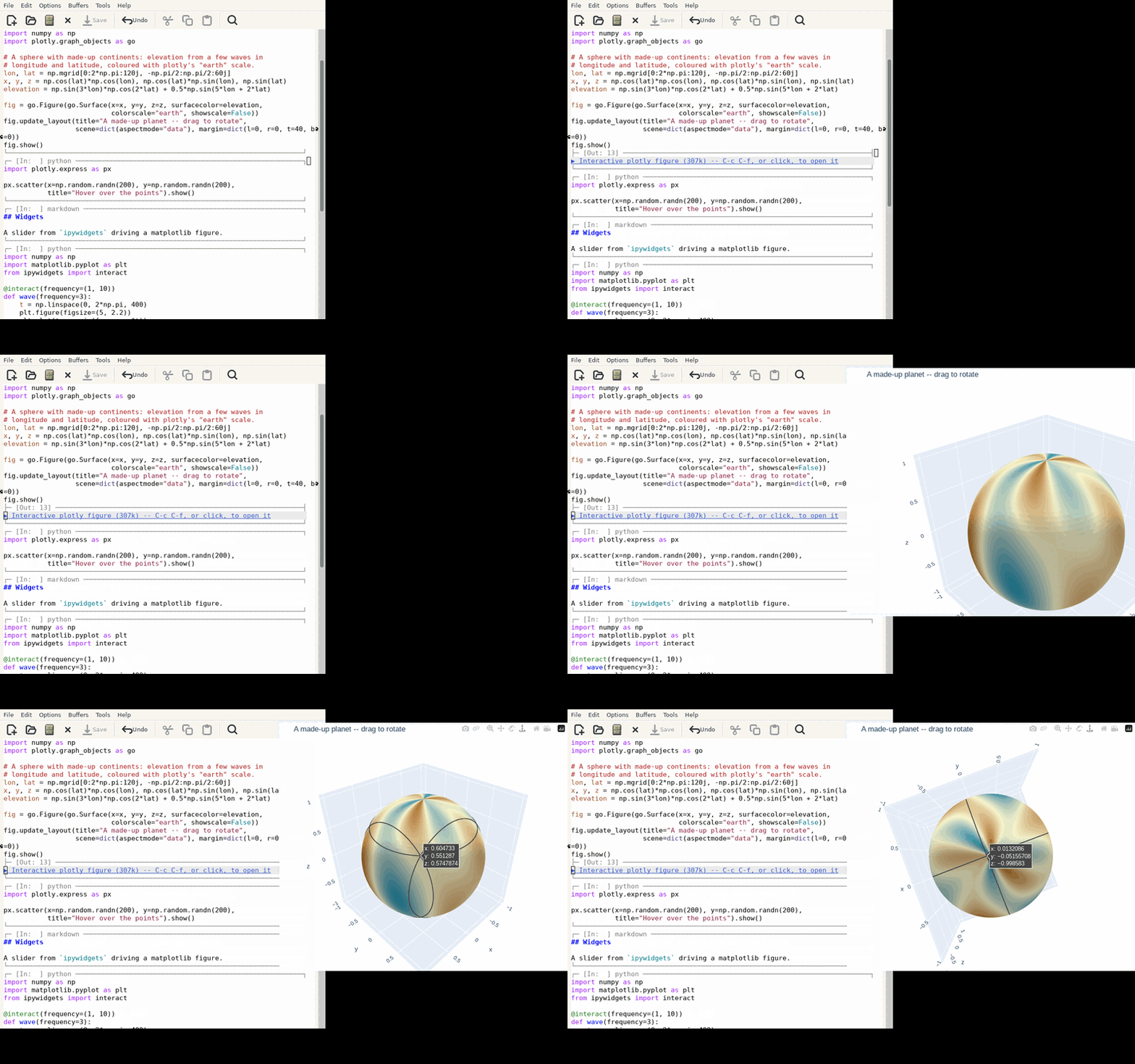
A plotly figure arrives as its JSON specification, so the page is built
in Emacs, with plotly.js asked of the kernel that made the figure: it
matches the figure, needs no network, and works through a tunnel. The
first figure of a plotly version takes some seconds – the server limits
how fast output reaches Emacs, so it comes in pieces – and later ones
none: it is kept. emjupy-plotly-js names a URL or a file instead.
C-c C-f on an image opens it in a frame of its own, for a figure too
small to read at cell width; the same frame each time. With
emjupy-inline-figures set to nil, figures are not drawn in the notebook
at all: each is a line, opened there the same way. Drawn inline is the
default.
Widgets
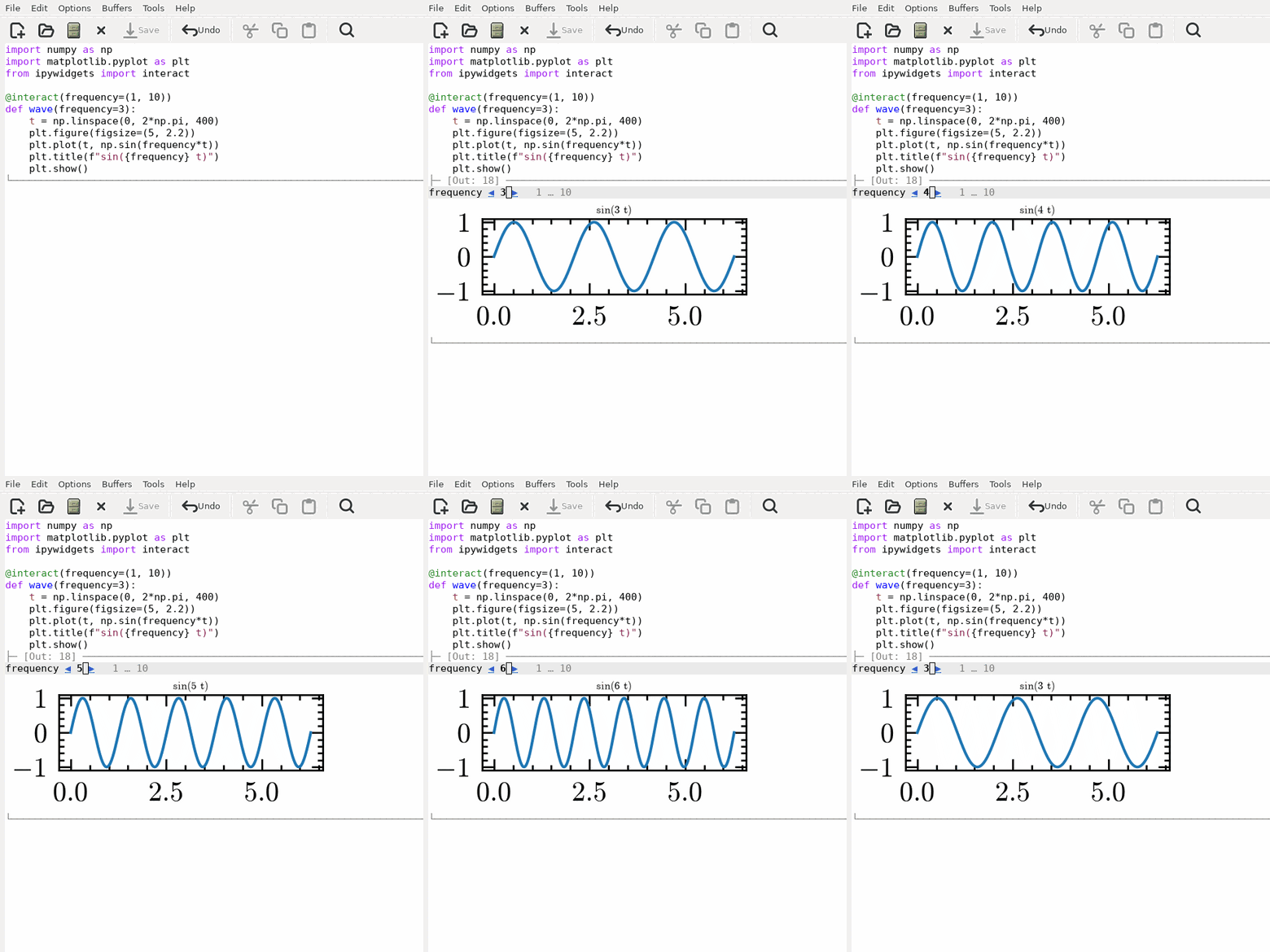
ipywidgets controls show as controls. An interact slider reads
frequency ◀ 3 ▶ 1 … 10: <left> and <right> anywhere on it step it,
the arrows can be clicked, and RET on the value asks for one. Moving
it redraws the figure in place, as in a notebook.
Every widget is drawn from the shape of its state, not from its type: a
number with bounds and a step is stepped (◀ 3 ▶), one without a step is
a bar, two numbers are a range, option labels are chosen from (a ▾), true
or false is a box to toggle ([x]), a value with no bounds is edited in
brackets ([text]), a button is clicked ([ Press ]), and a box draws
what it holds. So ipywidgets' controls all show without emjupy naming
them – 49 of its 50 widgets, checked against its own list – and a new
one does too if its state has a familiar shape. RET or a click on a
control uses it; what it asks for in the minibuffer follows the value: a
number within its bounds, text, a password, a list, a date or a time, a
colour.
Widgets whose data is binary work too: an image widget is drawn in the
notebook, and drawn again when the kernel replaces it (or shown as a line
that opens it, with emjupy-inline-figures nil); a sound or a video plays
in a window of its own; a file upload asks for files and sends them.
A widget that draws itself in JavaScript – plotly's FigureWidget, a
map, an anywidget – shows as a line, ▶ Interactive widget: FigureWidget
(anywidget), and opens in a page of its own, in the figure window, where
its JavaScript draws it, live: a change made there reaches the kernel,
and one made in the kernel reaches the page. The page talks to Emacs,
which relays over the kernel connection it has: it needs no token, and
works through a tunnel as the notebook does.
The widget's code is asked of the kernel – widget packages leave a copy
for the classic notebook in its environment, which matches its version
and needs no network; one with none is fetched from a CDN. The widget
manager itself comes from a CDN: emjupy-widget-scripts names local
copies instead, for a machine with no network.
Not drawn: a gamepad, shown by name.
Progress bars
A progress bar redraws itself by returning to the start of the line with a carriage return and writing over what was there. emjupy collapses those the way a terminal does, so a bar occupies one line and shows its latest state.
What appears depends on what the program actually wrote, and tqdm
writes a frame only every mininterval seconds, 0.1 by default. A loop
that finishes faster than that produces exactly two frames: the opening
one, at 0% with the bar area blank, and the closing one at 100%.
Nothing was lost – nothing else was ever sent.
Each stream keeps a line of its own: a bar on stderr is redrawn in
place while a print in the same loop, on stdout, goes to its own
lines. The bar shows once, in its latest state, with the printed lines
together below it.
Wide output
No line of output is drawn wider than the cell. The kernel is told the
cell's width in COLUMNS when it attaches, before a cell runs if the
width has changed, and when the window is resized – which is how
tqdm, and anything using shutil.get_terminal_size, learn how wide to
draw when their output is not a terminal.
Output that is wider anyway – a long log line, a wide table, a program
that ignores COLUMNS – is broken where the cell ends. Only the
drawing changes: the cell keeps its output as the kernel sent it, so a
saved notebook holds the original lines. A resize redraws the cells
whose lines were broken, at the new width.
ANSI colour in output
Output from termcolor, rich or colorama arrives with ANSI escapes in
it. These are applied as real colours rather than shown as
\\033[33m; set emjupy-render-ansi-colors to nil to strip them
instead.
Markdown highlighting
Markdown cells are highlighted out of the box – headings, emphasis,
inline code and fences, links, list markers and blockquotes – with no
external package. markdown-mode and markdown-ts-mode are MELPA
packages emjupy does not depend on; when one of them IS installed it is
used in preference to the built-in approximation.
Copying between cells
Text copied out of a cell carries its faces but none of emjupy's own
properties. One of them, emjupy-cell, holds the cell itself –
outputs, overlay and all – and carried into the kill ring it would make
text pasted elsewhere claim to belong to a cell it has nothing to do
with.
A kill whose region extends past the end of a cell is refused, but the
text still reaches the kill ring: Emacs copies before deleting. The
error is therefore accompanied by a usable C-y.
Relative paths in cells
Kernels are started through a Jupyter session bound to the notebook, so
a cell's working directory is the notebook's own folder, as it is in
Jupyter: open("data.csv") finds the file next to the notebook.
Exporting to a plain .py
C-c C-x C-e (emjupy-export-py) writes the notebook out as Python in
percent format: # %% before each code cell, and markdown cells carried
across as commented # %% [markdown] blocks. That is the format
Jupytext, VS Code and Spyder already read, so the result opens as a
notebook again elsewhere rather than being a one-way dump.
The default destination is beside the notebook itself, on the server it
came from. The file is written through the same Contents API the
notebook is read through, so this works for a remote kernel with no
TRAMP and no configuration – the .py lands next to the .ipynb on that
machine. With a prefix argument it writes to a local file instead, and
a TRAMP file name works there if you want it somewhere else again.
The buffer is synced first, so unsaved edits are included, and an
existing file is never overwritten without asking. Set
emjupy-export-markdown-cells to nil to export code only.
Note this is not the shadow buffer dumped to disk, although that is where the idea came from: the shadow buffer's markers carry emjupy's internal cell ids, which mean nothing outside emjupy, and it holds code cells only – so exporting it directly would silently drop your prose.
Which version am I running?
M-x emjupy-version reports the version, where the code was loaded from
and, in a checkout, the revision. In a notebook buffer it also names
the kernel's working directory and which language server is answering:
emjupy 0.1.12, git 3e8860a (2026-09-09), loaded from ~/.emacs.d/elpa/emjupy/;
kernel cwd /home/you/project; language server beside the kernel
"On this machine" instead means the fallback server is answering: for a
kernel that runs elsewhere, M-. will not find your own modules. See
Language server support.